-
-
![]()
1. Introduction
-
![]()
2. Course Curriculum
-
![]()
3. Certificate
-
- Course Details
- Course Curriculum
- Sample Certificate
- Review
- Education
- online course
- Computer Basics
- Microsoft Office Bundle
Course Curriculums
Course Description
Having expertise on all the office suites is must now. Each program comes useful in one or the other way every day when you work with data, files and different types of information.
There are numerous functions that are new in Microsoft office suite 2016 and hence eduCBA has brought you this amazing bundle on Microsoft Office 2016. Learn to excel in all Microsoft 2016 suites with eduCBA. Excel beyond Excellence by learning online and hands on Courses on MS Office. Lifetime Unlimited Access to 10 epic Microsoft 2016 Courses.
In this Training Bundle you will learn about Major Concepts: 290+ lectures
Microsoft Excel 2016 Basic
Microsoft Excel 2016 Advanced
Microsoft Access 2016 Basic
Microsoft Access 2016 Advanced
Microsoft Word 2016 Basic
Microsoft Word 2016 Advanced
Microsoft PowerPoint 2016 Basic
Microsoft PowerPoint 2016 Advanced
Microsoft Outlook 2016
Microsoft OneNote 2016
What is the Target Audience for this Microsoft office 2016 Bundle?
- Students
- Professionals
- Entrepreneurs
- Anybody wanting to learn Microsoft Office 2016
What are the Pre-requisites?
- A PC with Internet connection
- Microsoft Office 2016 installed
Benefits of online course:
1. High Quality Content
2. Learn Anywhere Anytime & at Your Pace
3. 24X7 Customer Support
4. Complete Student Support Throughout The Program
5. Online Video Training Material
6 Lifetime course access
7. Course Completion Certificate
For any Query feel free to call
Mob- +918587999769/9818826705
Curriculum
Section 1: Microsoft Excel 2016 Basic Course
1 Overview
2 Opening an Excel Worksheet
3 Ribbons and Quick Access Toolbar
4 Ribbons and Quick Access Toolbar continued
5 Case Study
6 Data entry in excel
7 Data entry in excel continued
8 Populating the Case Study in Excel
9 Calculations
10 Formulas- SUM MAX MIN AVERAGE
11 Formulas continued
12 Formatting- Number Formats
13 Formatting Table formats
14 Updating a Calculation
15 Percentage and Absolute references
16 Conditional Formatting
17 IF Function
18 COUNTIF and SUMIF Function
19 Graphs and Charts
20 Graphs & Charts part 2
21 Graphs & Charts part 3
22 Pie Chart
23 Sort Function
24 Filter Function
25 Pivot table
26 Pivot table part 2
27 Freeze & Split
28 Table Formats
29 Indents and Formatting Charts
30 Printing the Worksheet and Print Layout
31 Shortcuts in excel
32 Shortcuts- Navigation
33 Shortcuts- Workbook Basics
34 Shortcuts- Selection
35 Shortcuts- Working with Data
36 Shortcuts- Formula
37 Common errors
Section 2 Advanced Excel 2016
38 Paste Special
39 Logical functions – IF AND OR
40 Arithmetic functions MAX MIN ABS etc
41 COUNT COUNTIF COUNTA COUNTBLANK
42 Cell Information ISERROR ISBLANK etc
43 CHOOSE Function
44 VLOOKUP Function
45 HLOOKUP Function
46 MATCH and INDEX
47 Database functions DSUM DAVERAGE DCOUNT
48 OFFSET- Example 1
49 OFFSET Function- Dynamic
50 One Dimensional Data Tables
51 Two dimensional Data Tables
52 Solver
53 Goal Seek
54 Array Function Example 1
55 Array Function Example 2
56 Array functions rows and columns
57 TRANSPOSE
58 Frequency
59 PROPER UPPER LOWER LEFT RIGHT MID
60 FIND CLEAN REPT CONCATENATE
61 Pivot Table Slicer
62 Pivot Charts
63 Naming a Cell and a Range
64 Naming Dynamic Ranges
Section 3 Basic Microsoft Access 2016
65 Introduction to Microsoft Access
66 Starting Microsoft Access
67 Trusting a file
68 Quick access toolbar
69 Backstage view
70 Exploring the ribbons
71 Navigation pane
72 Components of a database
73 Planning and designing your database
74 Create a table in Layout View
75 Understanding the structure of a table
76 Create a table using design view
77 Create a table using calculated field
78 Field Properties
79 Importing data into Access
80 Formatting tools
81 Linking the tables
82 Linking the tables continues
83 Using Query wizard for Simple Queries
84 Using design Query
85 Sorting data using Queries
86 Building calculated fields
87 Create data entry forms
88 Create compound forms
89 Modifying forms in Layout and design view
90 Report on single table
91 Report on multiple table and formatting
92 Create reports through queries
93 Exporting data from Access
94 Creating a mail merge
Section 4 Advanced Microsoft Access 2016
95 Introduction to Microsoft Access
96 Create tables using Application parts
97 Create tables using Application parts (Continues)
98 Make table query
99 Update query
100 Delete query
101 Crosstab query
102 Union Query
103 Statistical Query
104 Data source
105 Form Controls
106 Input Boxes
107 Record Navigation
108 Adding Buttons
109 Setting the tab order
110 Multiple forms
111 Split forms
112 Report structure in design view
113 Adding group
114 Adding fields from other tables
115 Adding totals and sub totals
116 Conditional formatting and data bars
117 Create mailing labels
118 Creating a Macro
119 Attaching macros to objects
120 Using data macros
121 Publishing in HTML or XML
122 Sharing via email
123 Using data analysis tools
124 Encrypting the database
125 Splitting the database
126 Conclusion
Section 5:Introduction to Basic Microsoft Word 2016
127 Introduction to Basic Microsoft Word 2016
128 Introduction to Word 2016 & Understanding the Ribbons
129 Backstage View & Quick Access Toolbar 2016
130 Compatibilty Mode & Navigation Pane 2016
131 Working with Text 2016
132 Selection of Text 2016
133 Find & Replace Text 2016
134 Understanding Fonts 2016
135 Working of fonts & applying basic formatting 2016
136 Text Effects 2016
137 How to save a document 2016
138 Other file format 2016
139 Arranging paper margins, paper orientation & paper size 2016
140 Inserting columns & page break ups 2016
141 Using watermark, page colour & page border 2016
142 Checking spelling & grammar 2016
143 Using thesaurus, word count & translate the language 2016
144 Printing a document 2016
145 Setting Print Options 2016
146 Alignment, Justifying & Line Spacing 2016
147 Use of indents, tabs & bulleted or numbering list 2016
148 Demonstrating a document with pictures 2016
149 Positioning, Wraping & Re-sizing a picture 2016
150 Use of tables, smartart, charts & screen shots 2016
151 Special Effects 2016
152 Customizing a word & its ribbons 2016
Section 6:Advanced Microsoft Word 2016
153 Introduction to Advance Microsoft Word 2016
154 Understanding Themes
155 Change style sets colors, fonts & paragraph spacing
156 Creating quick styles and table of contents
157 Creating quick styles and table of contents
158 Restrict Formatting and Create Multi-Level List Part 1
159 Restrict Formatting and Create Multi-Level List Part 2
160 Understanding of Tables
161 Converting Text into Table, columns and rows
162 Creating a form
163 Use of excel, converting table into text
164 Understanding of Cover Page
165 Numbering Pages, Headers, Footers AND Text Box
166 Customizing Headers and Footers
167 Document Sharing
168 Tracking Changes
169 Accepting & Rejecting Changes
170 Comparing & Combining Changes
171 Mail Merge
172 Protecting your Document
Section 7:Basic Microsoft PowerPoint 2016
173 Introduction to Basic Microsoft Powepoint 2016
174 PowerPoint Interface
175 Understanding of Backstage View PowerPoint 2016
176 Changing Views & Add guidelines
177 Build a PPT from scratch
178 Build a presentation slide from a template or theme
Changing Themes
180 Controlling the look of PPT and Adding Header and Footer
181 Customizing the layout slide
182 Forming slides into sections and readjusting slides
183 Inserting pictures & alignment of objects
184 Effects to a picture
185 Removing the background from images and use of eyedropper tool
186 Use of bullet points & outline mode
187 Use of text boxes & word art
188 Working on Tables
189 Use of thesaurus, research and language tools
190 Adding and Formatting Shapes
191 Cropping a shape to picture and merging shapes
192 Use of Charts and Smart Arts_part01
193 Use of Charts and Smart Arts_part02
194 Adding Equations
195 Adding and Formatting Video
196 Adding and Formatting Audio
197 Adding Slide Transitions and Animation to Objects_part01
198 Adding Slide Transitions and Animation to Objects_part02
Section 8:Advanced Microsoft PowerPoint 2016
199 Introduction to Advanced Microsoft PowerPoint 2016
200 Creating new style
201 Adding more animation to a slide
202 Motion Animation
203 Drawing a Sketch
204 3D Pop-out Photos
205 3D Curved Roadmap
206 3D Effects to Wooden Block
207 Effects to GIF image
208 Adding Notes & Printing the Slides
209 Preparing for Presentation & Adding Comments
210 Reviewing & Comparing Changes
211 Use of Slide Show & Presenter View
212 Use of ink highlighter
213 Use of set up slide show & custom slide show
214 Save presentation as video
215 Save a presentation in other format
216 Sharing the Presentation
Section 9: Learn Microsoft Outlook 2016
217 Getting Started with Outlook 2016
218 Types of Email accounts
219 Adding POP,IMAP Account
220 Adding and Removing an Account
221 Reading an E-mail
222 Managing the Inbox looks
223 Adding Columns in inbox
224 Saving and Removing attachments
225 Searching an email
226 Filtering Junk emails
227 Creating and Sending an email
228 Exploring Insert Tab
229 Understanding Quick Part
230 Responding E-mails
231 Text Body Formatting
232 Creating e-mail Signature
233 Setting Autoreply by creating Rule
234 Creating Stationary
235 Creating Voting Options in mail
236 Creating New Contact
237 Creating Contact from email
238 Creating Contact Group
239 Working with Categories
240 Searching Contacts in People Hub
241 Creating Contact Folder and Folder Group
242 Forwarding Contact
243 Setting Conditional Formatting for inbox mails
244 Follow up Flags
245 Assigning Color Category
246 Managing E-mail folders
247 Automate tasks using quick steps
248 Cleanup tools
249 Introduction to Calendar Interface
250 Creating an appointment
251 Meeting Invitation
252 Creating meeting through mail
253 Creating Calendar Group
254 Emailing and Printing your calendar
255 Creating and Assigning Tasks
256 Working with electronic sticky notes
257 Creating Backup File
258 Customizing outlook settings
259 Conclusion
Section 10: Learn Microsoft OneNote 2016
260 OneNote Introduction
261 What is One Note
262 Launching One Note
263 Understanding the interface
264 Sharing Notebook- Properties
265 Creating a New Notebook
266 Adding New Sections
267 Working with Pages and Sub-pages
268 Creating a Note
269 Sending Content to One Note
270 Copy data from PDF
271 Screen Clipping
272 Adding Images and Adding Media Files
273 Inserting Excel Sheets
274 Adding Equations and Symbols
275 Formatting Text and Using Styles
276 Bullets, Numbering, Spell Check and Auto Correct Options
277 Customizing the Interface
278 Search Option and Uses of Tags
279 Adding new Templates
280 Creating a New Template
281 Page setup
282 Adding Graphics to Background
283 Inserting a Table
284 Formatting the Table
285 Using OneNote Draw Option
286 Changing Handwriting, Shapes and Ink to Math option
287 Saving to other Formats
288 Inviting others and Creating a shared link
289 Syncing the Notebook
290 Author Indicators and Identifying Recent changes
291 Quick access toolbar and Ribbon changes
292 Email Option changes
293 Setting up Password
294 Backup Options for Notebook
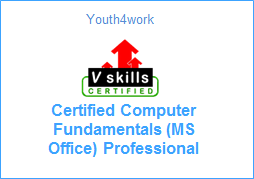
Here is a sample for the course completion certificate which you will receive after complete the course. This certificate is widely accepted across industries and will boost your chances to grab the job opportunities.
Mail us at: [email protected] with below details to receive your certificate:
- Name
- Course Name
- Date of Completion
- Address


Here is a sample for the course completion certificate which you will receive after complete the course. This certificate is widely accepted across industries and will boost your chances to grab the job opportunities.
Mail us at: [email protected] with below details to receive your certificate:
- Name
- Course Name
- Date of Completion
- Address
Curriculum
Section 1: Microsoft Excel 2016 Basic Course
1 Overview
2 Opening an Excel Worksheet
3 Ribbons and Quick Access Toolbar
4 Ribbons and Quick Access Toolbar continued
5 Case Study
6 Data entry in excel
7 Data entry in excel continued
8 Populating the Case Study in Excel
9 Calculations
10 Formulas- SUM MAX MIN AVERAGE
11 Formulas continued
12 Formatting- Number Formats
13 Formatting Table formats
14 Updating a Calculation
15 Percentage and Absolute references
16 Conditional Formatting
17 IF Function
18 COUNTIF and SUMIF Function
19 Graphs and Charts
20 Graphs & Charts part 2
21 Graphs & Charts part 3
22 Pie Chart
23 Sort Function
24 Filter Function
25 Pivot table
26 Pivot table part 2
27 Freeze & Split
28 Table Formats
29 Indents and Formatting Charts
30 Printing the Worksheet and Print Layout
31 Shortcuts in excel
32 Shortcuts- Navigation
33 Shortcuts- Workbook Basics
34 Shortcuts- Selection
35 Shortcuts- Working with Data
36 Shortcuts- Formula
37 Common errors
Section 2 Advanced Excel 2016
38 Paste Special
39 Logical functions – IF AND OR
40 Arithmetic functions MAX MIN ABS etc
41 COUNT COUNTIF COUNTA COUNTBLANK
42 Cell Information ISERROR ISBLANK etc
43 CHOOSE Function
44 VLOOKUP Function
45 HLOOKUP Function
46 MATCH and INDEX
47 Database functions DSUM DAVERAGE DCOUNT
48 OFFSET- Example 1
49 OFFSET Function- Dynamic
50 One Dimensional Data Tables
51 Two dimensional Data Tables
52 Solver
53 Goal Seek
54 Array Function Example 1
55 Array Function Example 2
56 Array functions rows and columns
57 TRANSPOSE
58 Frequency
59 PROPER UPPER LOWER LEFT RIGHT MID
60 FIND CLEAN REPT CONCATENATE
61 Pivot Table Slicer
62 Pivot Charts
63 Naming a Cell and a Range
64 Naming Dynamic Ranges
Section 3 Basic Microsoft Access 2016
65 Introduction to Microsoft Access
66 Starting Microsoft Access
67 Trusting a file
68 Quick access toolbar
69 Backstage view
70 Exploring the ribbons
71 Navigation pane
72 Components of a database
73 Planning and designing your database
74 Create a table in Layout View
75 Understanding the structure of a table
76 Create a table using design view
77 Create a table using calculated field
78 Field Properties
79 Importing data into Access
80 Formatting tools
81 Linking the tables
82 Linking the tables continues
83 Using Query wizard for Simple Queries
84 Using design Query
85 Sorting data using Queries
86 Building calculated fields
87 Create data entry forms
88 Create compound forms
89 Modifying forms in Layout and design view
90 Report on single table
91 Report on multiple table and formatting
92 Create reports through queries
93 Exporting data from Access
94 Creating a mail merge
Section 4 Advanced Microsoft Access 2016
95 Introduction to Microsoft Access
96 Create tables using Application parts
97 Create tables using Application parts (Continues)
98 Make table query
99 Update query
100 Delete query
101 Crosstab query
102 Union Query
103 Statistical Query
104 Data source
105 Form Controls
106 Input Boxes
107 Record Navigation
108 Adding Buttons
109 Setting the tab order
110 Multiple forms
111 Split forms
112 Report structure in design view
113 Adding group
114 Adding fields from other tables
115 Adding totals and sub totals
116 Conditional formatting and data bars
117 Create mailing labels
118 Creating a Macro
119 Attaching macros to objects
120 Using data macros
121 Publishing in HTML or XML
122 Sharing via email
123 Using data analysis tools
124 Encrypting the database
125 Splitting the database
126 Conclusion
Section 5:Introduction to Basic Microsoft Word 2016
127 Introduction to Basic Microsoft Word 2016
128 Introduction to Word 2016 & Understanding the Ribbons
129 Backstage View & Quick Access Toolbar 2016
130 Compatibilty Mode & Navigation Pane 2016
131 Working with Text 2016
132 Selection of Text 2016
133 Find & Replace Text 2016
134 Understanding Fonts 2016
135 Working of fonts & applying basic formatting 2016
136 Text Effects 2016
137 How to save a document 2016
138 Other file format 2016
139 Arranging paper margins, paper orientation & paper size 2016
140 Inserting columns & page break ups 2016
141 Using watermark, page colour & page border 2016
142 Checking spelling & grammar 2016
143 Using thesaurus, word count & translate the language 2016
144 Printing a document 2016
145 Setting Print Options 2016
146 Alignment, Justifying & Line Spacing 2016
147 Use of indents, tabs & bulleted or numbering list 2016
148 Demonstrating a document with pictures 2016
149 Positioning, Wraping & Re-sizing a picture 2016
150 Use of tables, smartart, charts & screen shots 2016
151 Special Effects 2016
152 Customizing a word & its ribbons 2016
Section 6:Advanced Microsoft Word 2016
153 Introduction to Advance Microsoft Word 2016
154 Understanding Themes
155 Change style sets colors, fonts & paragraph spacing
156 Creating quick styles and table of contents
157 Creating quick styles and table of contents
158 Restrict Formatting and Create Multi-Level List Part 1
159 Restrict Formatting and Create Multi-Level List Part 2
160 Understanding of Tables
161 Converting Text into Table, columns and rows
162 Creating a form
163 Use of excel, converting table into text
164 Understanding of Cover Page
165 Numbering Pages, Headers, Footers AND Text Box
166 Customizing Headers and Footers
167 Document Sharing
168 Tracking Changes
169 Accepting & Rejecting Changes
170 Comparing & Combining Changes
171 Mail Merge
172 Protecting your Document
Section 7:Basic Microsoft PowerPoint 2016
173 Introduction to Basic Microsoft Powepoint 2016
174 PowerPoint Interface
175 Understanding of Backstage View PowerPoint 2016
176 Changing Views & Add guidelines
177 Build a PPT from scratch
178 Build a presentation slide from a template or theme
Changing Themes
180 Controlling the look of PPT and Adding Header and Footer
181 Customizing the layout slide
182 Forming slides into sections and readjusting slides
183 Inserting pictures & alignment of objects
184 Effects to a picture
185 Removing the background from images and use of eyedropper tool
186 Use of bullet points & outline mode
187 Use of text boxes & word art
188 Working on Tables
189 Use of thesaurus, research and language tools
190 Adding and Formatting Shapes
191 Cropping a shape to picture and merging shapes
192 Use of Charts and Smart Arts_part01
193 Use of Charts and Smart Arts_part02
194 Adding Equations
195 Adding and Formatting Video
196 Adding and Formatting Audio
197 Adding Slide Transitions and Animation to Objects_part01
198 Adding Slide Transitions and Animation to Objects_part02
Section 8:Advanced Microsoft PowerPoint 2016
199 Introduction to Advanced Microsoft PowerPoint 2016
200 Creating new style
201 Adding more animation to a slide
202 Motion Animation
203 Drawing a Sketch
204 3D Pop-out Photos
205 3D Curved Roadmap
206 3D Effects to Wooden Block
207 Effects to GIF image
208 Adding Notes & Printing the Slides
209 Preparing for Presentation & Adding Comments
210 Reviewing & Comparing Changes
211 Use of Slide Show & Presenter View
212 Use of ink highlighter
213 Use of set up slide show & custom slide show
214 Save presentation as video
215 Save a presentation in other format
216 Sharing the Presentation
Section 9: Learn Microsoft Outlook 2016
217 Getting Started with Outlook 2016
218 Types of Email accounts
219 Adding POP,IMAP Account
220 Adding and Removing an Account
221 Reading an E-mail
222 Managing the Inbox looks
223 Adding Columns in inbox
224 Saving and Removing attachments
225 Searching an email
226 Filtering Junk emails
227 Creating and Sending an email
228 Exploring Insert Tab
229 Understanding Quick Part
230 Responding E-mails
231 Text Body Formatting
232 Creating e-mail Signature
233 Setting Autoreply by creating Rule
234 Creating Stationary
235 Creating Voting Options in mail
236 Creating New Contact
237 Creating Contact from email
238 Creating Contact Group
239 Working with Categories
240 Searching Contacts in People Hub
241 Creating Contact Folder and Folder Group
242 Forwarding Contact
243 Setting Conditional Formatting for inbox mails
244 Follow up Flags
245 Assigning Color Category
246 Managing E-mail folders
247 Automate tasks using quick steps
248 Cleanup tools
249 Introduction to Calendar Interface
250 Creating an appointment
251 Meeting Invitation
252 Creating meeting through mail
253 Creating Calendar Group
254 Emailing and Printing your calendar
255 Creating and Assigning Tasks
256 Working with electronic sticky notes
257 Creating Backup File
258 Customizing outlook settings
259 Conclusion
Section 10: Learn Microsoft OneNote 2016
260 OneNote Introduction
261 What is One Note
262 Launching One Note
263 Understanding the interface
264 Sharing Notebook- Properties
265 Creating a New Notebook
266 Adding New Sections
267 Working with Pages and Sub-pages
268 Creating a Note
269 Sending Content to One Note
270 Copy data from PDF
271 Screen Clipping
272 Adding Images and Adding Media Files
273 Inserting Excel Sheets
274 Adding Equations and Symbols
275 Formatting Text and Using Styles
276 Bullets, Numbering, Spell Check and Auto Correct Options
277 Customizing the Interface
278 Search Option and Uses of Tags
279 Adding new Templates
280 Creating a New Template
281 Page setup
282 Adding Graphics to Background
283 Inserting a Table
284 Formatting the Table
285 Using OneNote Draw Option
286 Changing Handwriting, Shapes and Ink to Math option
287 Saving to other Formats
288 Inviting others and Creating a shared link
289 Syncing the Notebook
290 Author Indicators and Identifying Recent changes
291 Quick access toolbar and Ribbon changes
292 Email Option changes
293 Setting up Password
294 Backup Options for Notebook